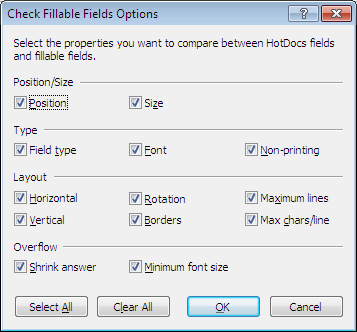
At a Glance: The Check Fillable Fields dialog box
A
B
C
D
E
After opening HotDocs Automator, directly from the your start menu or by opening a form template to edit from a HotDocs Library, you can open the Check Fillable Fields dialog box choosing Check Fillable Fields from the Tools menu.
There are a range of properties you can choose to compare and they are split into four sections. The first section A is Position/Size where you have the option to compare the position and the size of the fillable fields versus the HotDocs check boxes. The second section B is Type and you can compare field type, font and non-printing. The third section C is Layout where you can compare; horizontal, vertical, rotations, borders, maximum lines and maximum characters per line. The last section D is Overflow and you can compare shrink answer and minimum font size.
At the bottom of the dialog there are two buttons E where you can choose to select all of the options or clear all of the options.
To learn more about fillable fields in PDF templates follow the links below: