At a Glance: The Label Fields dialog box
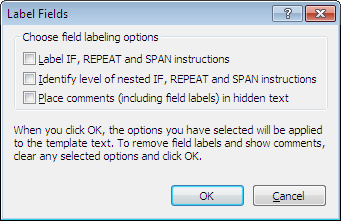
After opening a template to edit, you can open the Label Fields dialog box by clicking on the  Label Fields button on the HotDocs Ribbon.
There are three check boxes in this dialog that you can select to set field labeling options:
- Label IF, REPEAT, and SPAN instructions: Causes HotDocs to label IF, REPEAT, and SPAN fields. A label can help you identify matching instructions within a series of instructions. The label that is assigned is a number. For example, HotDocs labels the first REPEAT instruction in the template with the number 1, the next REPEAT instruction with a number 2, and so forth.
- Identify level of nested IF, REPEAT, and SPAN instructions: Causes HotDocs to insert the level of the IF, REPEAT, or SPAN instruction in the field's label. If the field is nested, the level number is incremented. Levels are identified by the letter L. For example, if labeling the third level of a REPEAT instruction, the text L3 is merged in the label.
- Place comments (including field labels) in hidden text: Causes HotDocs to apply the word processor's hidden text property to field comments and labels. When you click OK, everything in the comment field is hidden. To view the comments again, you can either clear this option, or you can use the word processor's command for showing/hiding hidden text.
You can remove any of these options by deselecting the check boxes.
To learn more about labeling fields follow the link below: