At a Glance: The IF Field dialog box (IF Expression)
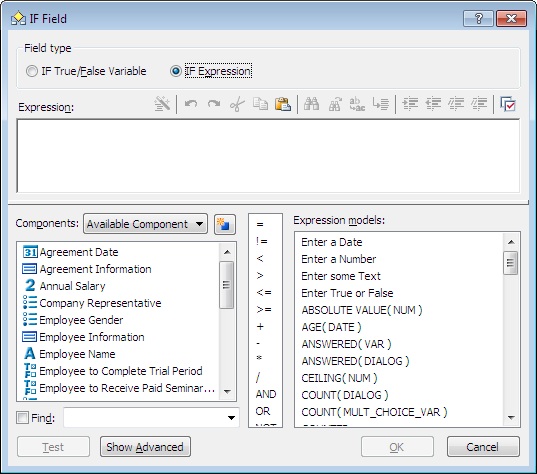
A
B
C
D
E
F
After opening a template to edit, you can open the IF Field dialog box by clicking on the  IF Field button on the HotDocs ribbon. If you select IF Expression from the multiple choice options A at the top of the dialog box then you will be presented with the following options below:
Below the multiple choice options A is the Script Toolbar where you can choose from the following buttons to search and edit the Script field B:
 Auto Format: Indents matching pairs of IF and REPEAT instructions, based on the level of their insertion.
 Undo: Removes any changes you have made to the script.
 Redo: Reapplies any changes you have made to the script.
 Cut: Removes the selected text and copies it to the Clipboard.
 Copy: Copies the selected text to the Clipboard.
 Paste: Pastes the selected text on the Clipboard at the cursor position in the script.
 Find: Displays the Find dialog box where you can specify the word or text string for which you are searching.
 Find Next: Finds the next instance of the word or text string for which you are searching.
 Find and Replace: Searches for a specific word or text string and replaces it with word or text string you specify.
 Go To: Displays the Go To dialog box where you can specify the location in the script to which you want to move your cursor. You can go to either a specific line or character in the script.
 Indent Block: Indents the selected text.
 Outdent Block: Realigns the indented text with the left margin of the scripting box. (If the text has been indented more than once, realigns the text with the previous tab stop.)
 Comment Block: Causes the selected text to become inactive, meaning HotDocs won't process it when it processes the computation. Often, template developers "comment out" scripting if they need to close the scripting dialog box but HotDocs won't let them because the script is invalid. Additionally, developers often add personal explanations to the scripts they are writing, and commenting them out keeps the computation operational.
 Uncomment Block: Removes any commenting that has been applied to the selected script. Once the script is uncommented, HotDocs will attempt to process it.
 Options: Displays the HotDocs Options dialog box where you can customize the way script editing features work.
 Help: Opens the relevant page of the HotDocs Help File.
Below this is the Script field in which you can type in the expression. You can also use your mouse to drag variables, operators, and models from the lists below to this box, or press Ctrl+Space to have HotDocs display these lists directly in the script so you can use the keyboard to choose the syntax item you need.
On the left is the Component list C showing a list of all the components in this template. You can search it using the find field at the bottom, filter it by selecting a component type from the drop-down list at the top or create a new component by clicking on the  New Component button. In the center D is a list of useful scripting operators you can drag into the Expression box. Operators help you compare relationships between items in your script. They also allow you to perform mathematical calculations on items in your script. At the right is a list of Expression models E you can use to create a custom expression. Expressions must result in a true/false value.
For further information on how to use the operators, see Use Operators when Scripting, and for further information what the expression models do, see Full List of Expression Models.
If you click the Show Advanced button F you will see a text field at the bottom on the dialog where you can enter a comment about the IF Field.
To learn more about using IF fields follow the links below:
- Introduction: Make Parts of Templates Conditional
- Include or Exclude a Single Version of Text Using a Simple IF Instruction or Expression
- Include or Exclude Multiple Versions of Text Using IF and ELSE IF Instructions or Expressions
- Edit an IF Instruction or Expression
- Nest IF Instructions
- Use Conditional Instructions in a Computation Script
- Tips on Using IF Instructions