At a Glance: Script Editor (HotDocs Options)
A
B
C
D
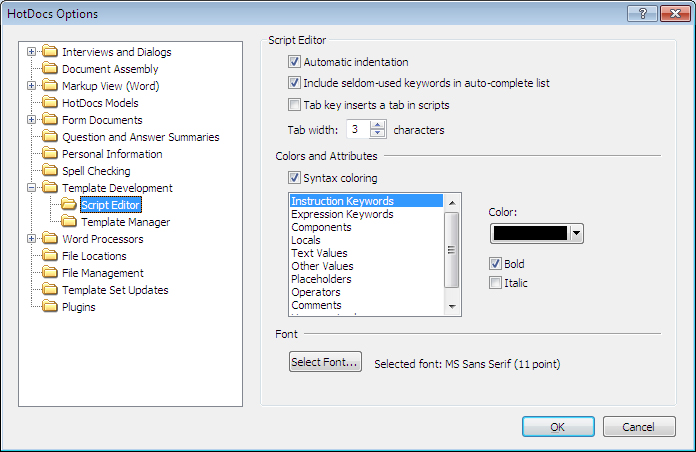
After opening  HotDocs Options from the toolbar (or Tools menu) in your HotDocs Library you can choose from a list of option pages in the left hand pane A.
If you double click on Template Development you will see a list open below containing a file for setting the options for the Script Editor and the Template Manager. Click on Script Editor to bring up the Script Editor Options dialog box.
The first section of options B contains four settings for the script editor. The three check boxes allow you to choose if HotDocs will automatically indent script, include less common keywords in the auto-complete list and allow the tab key to insert a tab in scripts. In the field below this you can enter a number for how many characters wide tab will be when used in the script editor (it must be between 1 and 15).
In the second section C you can decide whether or not you want syntax coloring in the script editor by checking or unchecking the box. You can then use the list below to set colors and styles for each type.
In the third section D you can select a font and font size for the text in the script editor.
As the text in the script editor will only be seen by the template developer the choices of font and colors are available to help make the editor easier to use rather than for any aesthetic qualities on the final template.
To find out more about setting options for Script Editor follow the link below: