At a Glance: Template Development (HotDocs Options)
A
B
C
D
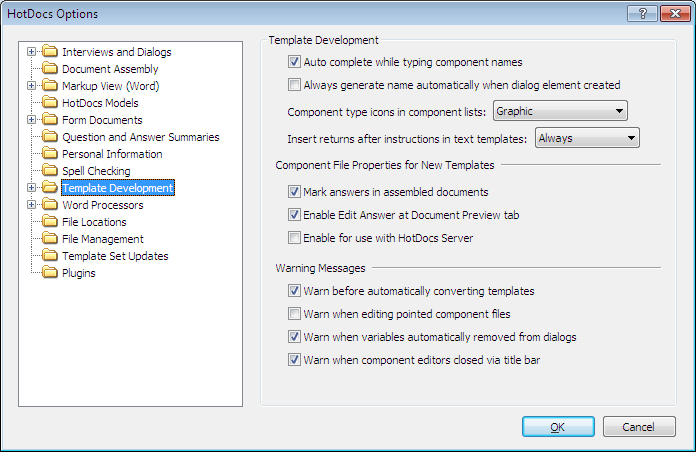
After opening  HotDocs Options from the toolbar (or Tools menu) in your HotDocs Library you can choose from a list of option pages in the left hand pane A.
If you click on Template Development you will see the Template Development Options dialog box, from here you can set the default options for new templates and decide which warning messages you would like displayed.
The first set of options B focus on settings used while developing a template. From here you can choose to have HotDocs auto complete component names while typing and to always automatically generate the name when a dialog element is created. There are two drop-down lists where you can choose what style of component icons you would like displayed in the component lists and whether HotDocs should insert returns after instructions in text template.
The second set of options C focus on settings for component file properties for new templates. Using the three check boxes you can choose whether HotDocs marks answers in assembled documents, allows you to edit answers at the document preview tab and whether the component file will be automatically enabled for use with HotDocs Server.
The third set of options D allows you to choose which warning messages HotDocs will display. You can choose to have HotDocs warn before automatically converting a template, when you are editing a pointed component file, when variables are automatically removed from dialogs and when the component editor is closed via the title bar.
To find out more about setting options for Template Development follow the links below:
- Have HotDocs Automatically Complete Component Names
- Have HotDocs Automatically Generate Dialog Element Component Names
- Choose Icon Style for Component Lists
- Control When Returns Are Inserted After Instructions in Text Templates
- Enable Document Editing Options for All New Templates
- Enable All New Templates for Use with HotDocs Server
- Display HotDocs Warning Messages