Lesson 4: Filter the List of Records
Overview
By default, when HotDocs presents a table of records during the interview, every record in the table is displayed. Depending on the size of the table, this may mean the table with which you are working could make retrieving data from it sluggish.
You can limit the number of records retrieved from a database by creating a filter. A filter compares the value in a database field with another value or with a variable in the template. Only the records that meet the comparison are displayed.
In this template, the INVOICE table contains many records, but you want to generate letters for only those invoices that have not been paid. You can create a filter that displays only the records whose DATE_PAID field is empty.
Start the Tutorial
If you are continuing immediately from Lesson 3, skip the instructions for opening the template and proceed to “Create the Database Filter.”
If you closed the template at the end of Lesson 3, complete the following steps.
To open the Collection Letter template
- Open your word processor and click the
 HotDocs button. The My
Test Templates library appears.
HotDocs button. The My
Test Templates library appears.
If the My Test Templates library does not appear, choose Open Library (File menu), select the library in the default Libraries folder (for example, My Test Templates.hdl), and click Open.
- Select Collection Letter and
click
 Edit.
The template appears, ready for you to edit.
Edit.
The template appears, ready for you to edit. - Click the
 Component
Manager button. The Component
Manager window appears.
Component
Manager button. The Component
Manager window appears.
Create the Database Filter
You must create a filter that displays only the records whose DATE_PAID field is empty. Then, during the interview, users can choose from only unpaid accounts.
To filter the records
- With Component Manager displayed, edit the Invoice Data component. The Database Editor appears.
- Click the Sort & Filter tab. The window changes to show sorting and filtering options.
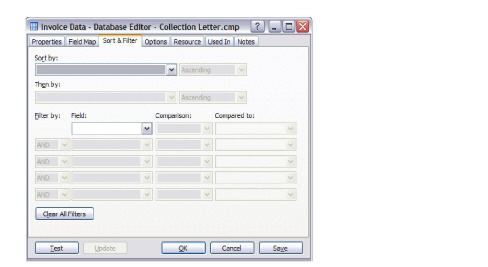
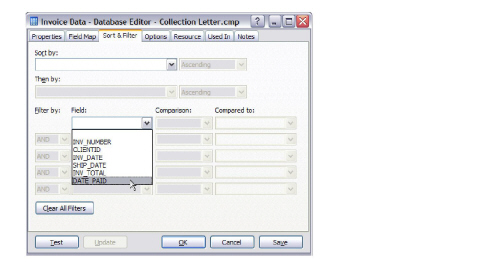
- Click the Filter by Field drop-down button and select DATE_PAID. The Comparison field becomes active.
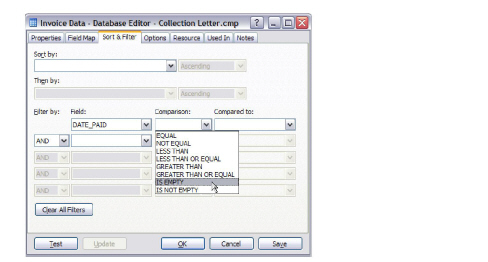
- Click the Comparison drop-down button and select IS EMPTY.
- Click Test. HotDocs displays the test assembly window.
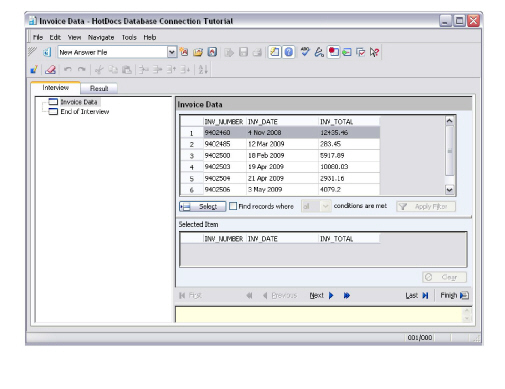
Notice that seven records are listed. This is because the DATE_PAID field for these seven invoices is empty, meaning these accounts are delinquent on their payments.
- Close the test assembly window and click OK at the Database Editor.
Conclusion
You are now finished with this lesson. In it, you learned how to filter a list of records.
If you do not want to go on to Lesson 5 at this time, close Component Manager, and then click the  Save and Close button to close the template. Then exit HotDocs.
If you are continuing on to Lesson 5, click the  Save button to save your work.