Merge a List of Answers in a Nonstandard Table
Sometimes you may need to merge a list of answers instead of a single answer in a form template. Often this list can appear in a predefined table. Generally, these tables ask for information in a fairly standard order—in rows that read from left to right.
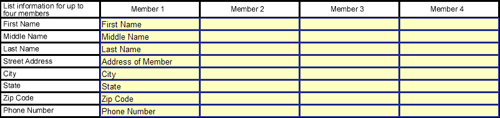
However, some lists require information that flows in different patterns, such as rows going from top to bottom. These kinds of tables are considered nonstandard. In nonstandard tables, you must specify a field order for every field in the table, then insert the variables in the fields you have assigned to Row 1. The following examples show types of nonstandard tables.
In this example, the rows are sequenced from left to right instead of top to bottom:
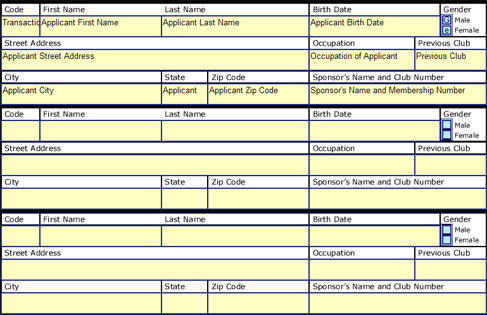
In this example, the table is divided into sections, but each section is actually a row in the table:
To put a list in a nonstandard table
- Edit a form template.
- Create a field in each empty table cell that will contain an answer in the assembled form.
- Select all of the fields for the first row (the first series of fields) in the table, then click the
 Field Properties button. The Field Properties dialog box appears. (You can also right-click and select Order from the shortcut menu.)
 - Click the Additional tab, and in the Tab Order group, enter 1 in the Row field.
- Click OK.
- Select all of the fields for the next row in the table and set them to Row 2. Repeat this process for the remaining rows in the table, increasing the row number for each subsequent row.
- Select all the fields for the first column in the table and set them to Column 1. Repeat this process for the remaining columns in the table, increasing the column number for each subsequent column.
- Attach variables to the fields in Row 1.
- Select all of the fields in the table and select Group as Table from the Field menu. A bounding frame appears around the grouped fields. You can also right-click and select Group as Table from the shortcut menu.
- With the grouped fields still selected, choose REPEAT from the Field menu. The REPEAT Field dialog box appears. You can also double-click the grouped fields.
- Create a repeated dialog that contains the variables used in the table, or select an existing repeated dialog.