Merge a List of Answers in a Standard Table
Sometimes you may need to merge a list of answers instead of a single answer in a form template. Often this list can appear in a predefined table in which users enter answers in rows sequenced from top to bottom and in columns sequenced from left to right.
You can also create what is called a nonstandard table, or one in which the rows are sequenced from left to right, instead of top to bottom. For details, see Merge a List of Answers in a Nonstandard Table.
When you create a standard table, you create and group fields in every cell, but you only attach variables to fields in the top row, like this:
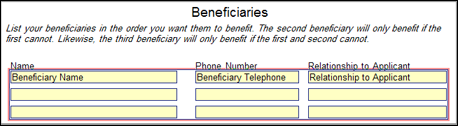
To create a list
- Edit a form template. (See Edit a Form Template.)
- Create a field in each empty table cell that will contain an answer in the assembled form. (See Create a Form Field.)
- Attach variables to only the first row of fields—one variable for each column. (See Attach a Variable to a Field.)
- Select all of the fields in the table, then select Group as Table (Field menu). A bounding frame appears around the grouped fields. (You can also right-click and choose Group as Table from the shortcut menu.)
- With the grouped fields still selected, choose REPEAT (Field menu). The REPEAT Field dialog box appears. (You can also double-click the grouped fields.)
- Create a repeated dialog that contains the variables used in the table, or select an existing repeated dialog. (See Create a REPEAT Instruction to Gather a List of Answers.)
During assembly, if the user enters more answers than there are rows, those answers can be sent to the addendum, which you can customize.
You can filter answers merged into the table. (See Filter a List of Answers and Filter a List Using a Computation Variable.)
Information about the REPEAT instruction is associated with the field grouping. If you ungroup the table after you have inserted a REPEAT Instruction, remember to regroup the fields before you close the template. Otherwise, the information about the instruction is lost.
To create a list in a single variable field instead of a table, select the field and insert a Computation variable. In the computation, use a REPEAT instruction. (See Create a REPEAT Instruction Using a Computation Variable.)